Video Compression Guide: Make Files Smaller Without Ruining Quality
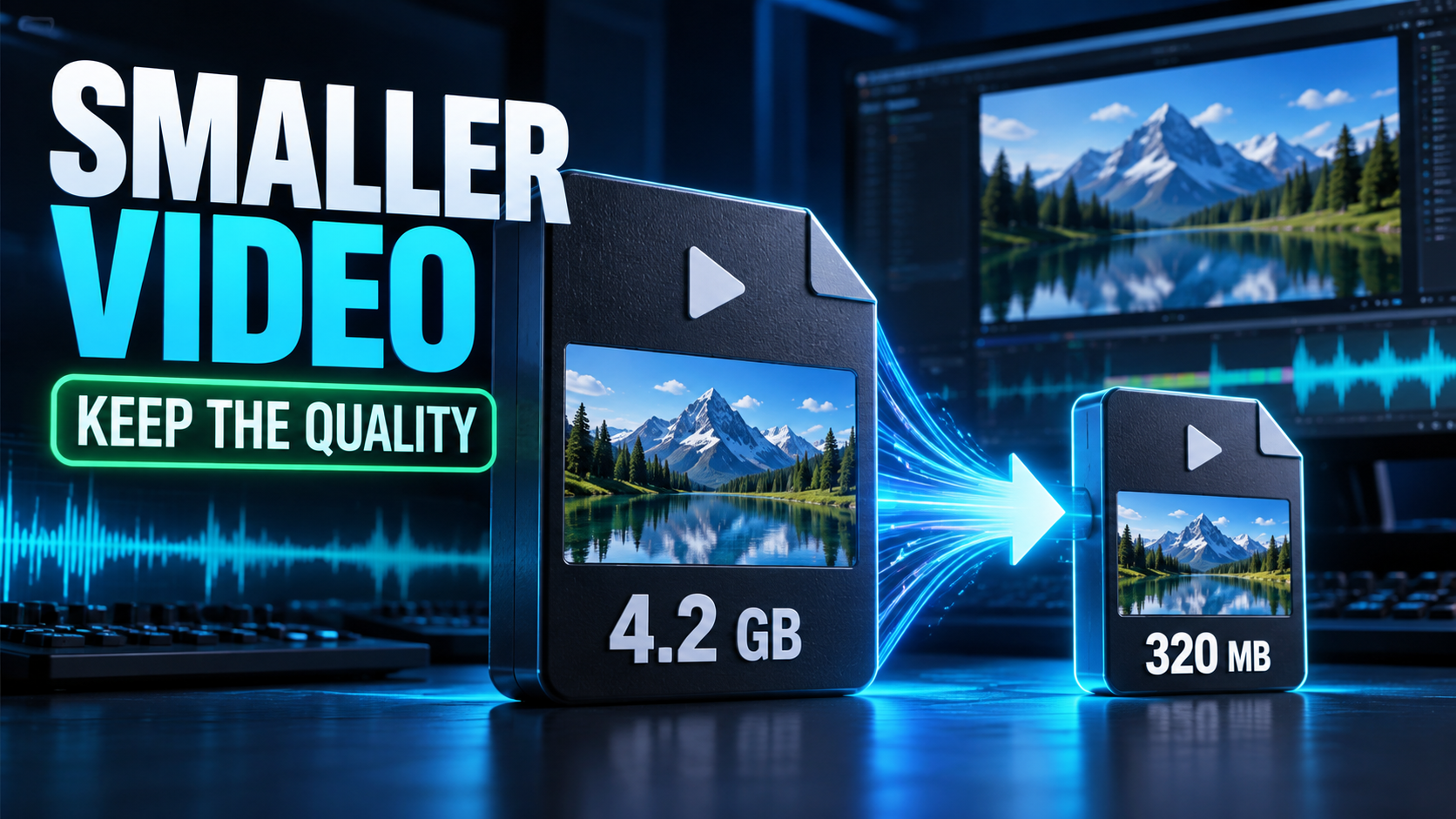
Quick answer: Match the source frame rate, avoid unnecessary upscaling, use H.264 for dependable compatibility, reduce bitrate gradually, and keep AAC audio sensible for the material. Export a short difficult segment first—motion, texture and gradients reveal compression damage faster than a static talking head.
Last verified: September 5, 2026.
The controls that actually change file size
Approximate file size is driven by total bitrate and duration. Resolution and frame rate matter because they change how much visual information the encoder must describe. Codec efficiency determines how much quality you can keep at a given bitrate.
| Control | Smaller-file move | Main risk |
|---|---|---|
| Resolution | Use the delivery resolution | Lost fine detail |
| Frame rate | Match the source; avoid needless 60 fps | Judder if converted badly |
| Codec | Use a more efficient supported codec | Compatibility |
| Video bitrate | Lower in measured steps | Blocks, smearing, banding |
| Audio bitrate | Reduce for speech | Dull or metallic sound |
A repeatable compression test
- Select a 20–30 second sample containing motion, hair, foliage, gradients and text.
- Export with the destination’s recommended codec and source frame rate.
- Create three bitrate versions rather than guessing once.
- Compare at 100% size and on the actual phone or monitor.
- Check audio sync, captions and color.
- Upload a private test when the platform recompresses files.
H.264, HEVC and AV1
H.264 remains the safe default for broad social and browser compatibility. HEVC and AV1 can be more efficient, but editing support, upload acceptance, hardware decoding and licensing paths vary. Do not choose a codec only because it is newer; choose the most efficient format the complete workflow reliably supports.
When quality falls apart
Fast motion, noise, confetti, water and fine patterns need more data. Heavy sharpening can make encoding harder. If a low-bitrate export looks unstable, reduce noise, simplify unnecessary overlays, use slower encoding where available, or accept a slightly larger file.
For a real size-constrained example, see our Discord compression guide. Platform-specific creators can also use our Vimeo export settings.
FAQ
Is two-pass encoding always better?
It can allocate bitrate more intelligently for a fixed-size deliverable, but modern constant-quality workflows may be more practical when an exact file size is not required.
Should I export 4K for a 1080p destination?
Usually no. Keep a high-quality master, then make a delivery file that matches the platform and viewing context.
Why does the uploaded video look worse?
Most platforms transcode uploads. Start with a clean file, avoid repeated generations and judge a processed test rather than the local export alone.
Worked example: a 10-minute 1080p tutorial
Start with the source frame rate and a clean H.264 export. If the file is too large, test progressively lower video bitrates on the hardest 30 seconds instead of re-exporting the whole timeline. Keep speech audio clear, and compare the platform-processed result. If the tutorial contains static slides, it may tolerate a lower bitrate than gameplay or handheld footage at the same resolution.
Master and delivery files
Keep a high-quality master separate from the upload copy. The master protects future edits; the delivery file is optimized for one destination. Recompressing yesterday’s upload for tomorrow’s platform compounds artifacts. Return to the master whenever possible and create a new delivery export.